# Custom Variable 0
The **C Var 0** menu screen allows you to adjust how **responsive** the sensor is to motion across both lenses. It controls how **frequently** the sensor is taking measurements to look for **movements** (changes in infrared radiations) across its field of view. Taking more frequent measurements means that the sensor will be able to pick up **smaller or more fleeting movements** that might otherwise be missed if it is sampling less frequently.
This is different to the **main [far](https://docs.camtraptions.com/books/pir-v4-manual/page/far-sensor "Far Sensor") & [wide](https://docs.camtraptions.com/books/pir-v4-manual/page/wide-sensor "Wide Sensor") sensitivity setting** which relate to the **amplitude** of the infrared signal required to trigger the sensor, i.e. how **warm, large or close** the subject must be.
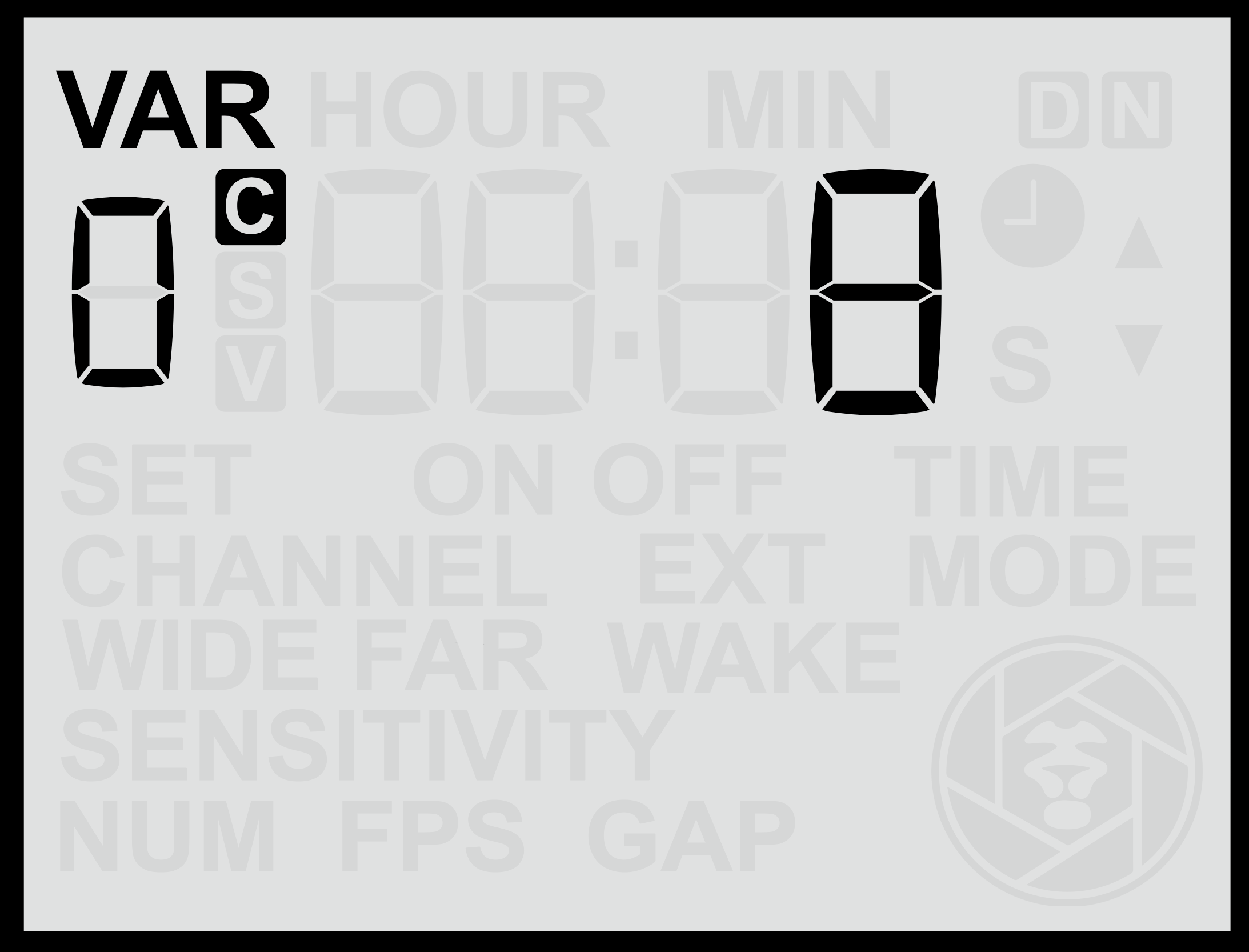
#### **Adjusting Sampling Frequency**
1. From the **C Var 0** screen, use the **Up** or **Down** buttons to change the value.
2. Press the **Set** button to **save** your selection.
Sampling Frequency can be set between **1** and **16** (the default is 8), where:
- **16** = Maximum sampling frequency (the sensor will detect faster, smaller and more momentary movements).
- **1** = Minimum sampling frequency (requires slower, larger and more pronounced movement to trigger).
At higher sampling frequencies, the sensor will consume slightly more power and may be more susceptible to false triggering from wind, vegetation or dappled light, but it will be more effective at detecting small, rapidly moving subjects. Therefore, you should look to optimise the sampling frequency based on the intended subject, the environmental conditions and your battery life requirements.
#### **Adaptive Sensitivity Mode**
The sensor also features an **Adaptive Sensitivity** algorithm designed to help reduce false triggers in challenging environments.
To enable or disable Adaptive Sensitivity:
- **Hold** either the **Up** or **Down** button for more than **2** **seconds** while on the **C Var 0** screen.
- When active, the display will show the **“ON”** indicator for Adaptive Sensitivity.
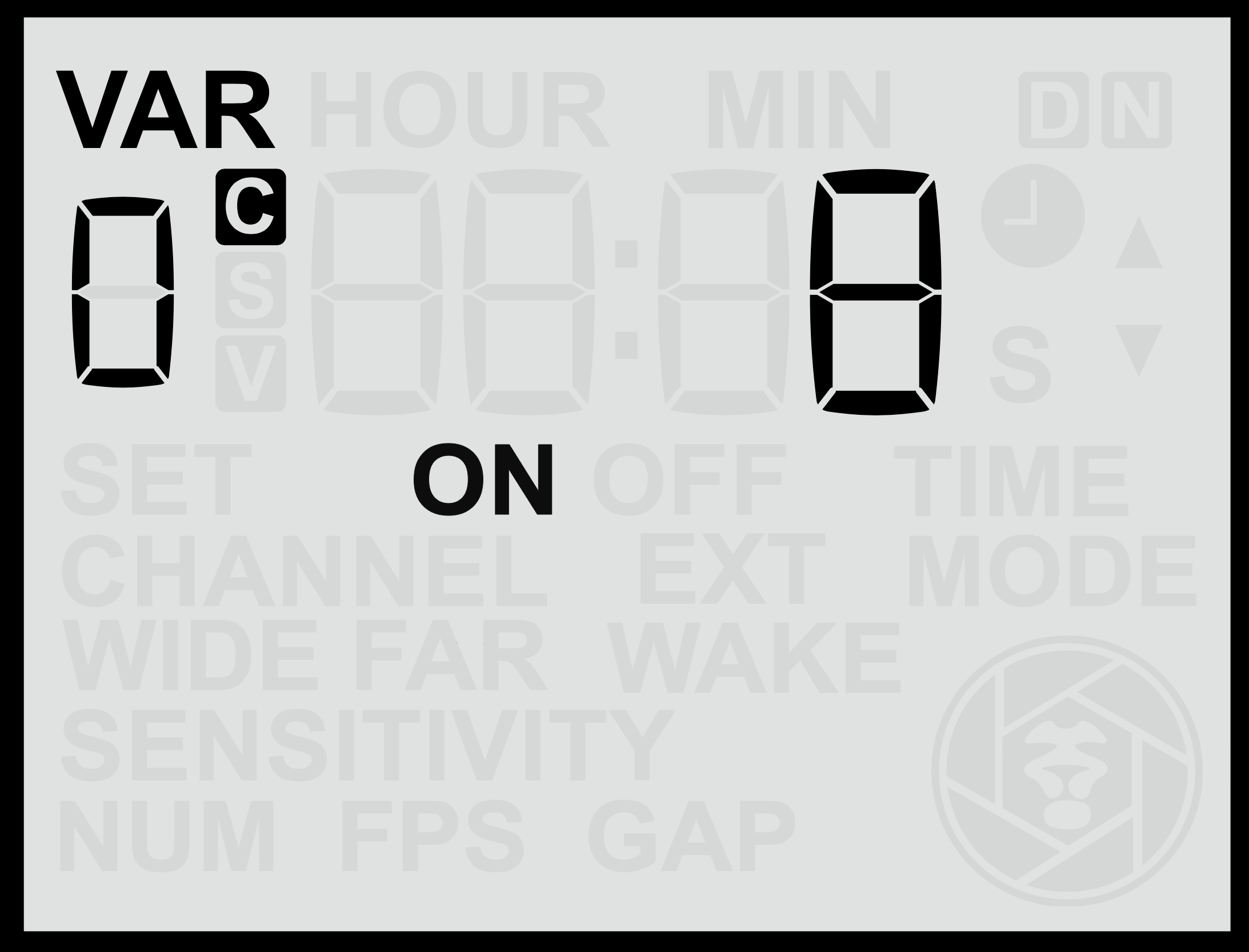
In this mode, the sensor dynamically adjusts its primary sensitivity thresholds, i.e. the thresholds that relate to the main [far](https://docs.camtraptions.com/books/pir-v4-manual/page/far-sensor "Far Sensor") & [wide](https://docs.camtraptions.com/books/pir-v4-manual/page/wide-sensor "Wide Sensor") sensitivity settings (**not** the sampling frequency) in response to background activity levels:
- If there is **persistent low-level motion or heat variation** (for example, caused by wind-blown vegetation or rising warm air during the middle of the day), the trigger threshold is automatically increased.
- When background movement decreases, the sensor gradually lowers the threshold again.
This adaptive behaviour helps the sensor remain effective while **reducing false detections** under fluctuating environmental conditions.
In most circumstances, **Normal Sensitivity Mode** provides sufficient control. However, if false triggers occur intermittently — such as at certain times of day or under windy or hot conditions — **Adaptive Sensitivity Mode** could improve reliability.