# Enable Time Windows
The **Time Windows** setting allows you to control when the sensor is active during a 24-hour period. When enabled, the sensor will automatically disable itself outside the defined time window, allowing it to operate only during selected hours (for example, **nighttime only** or **daytime only** operation).
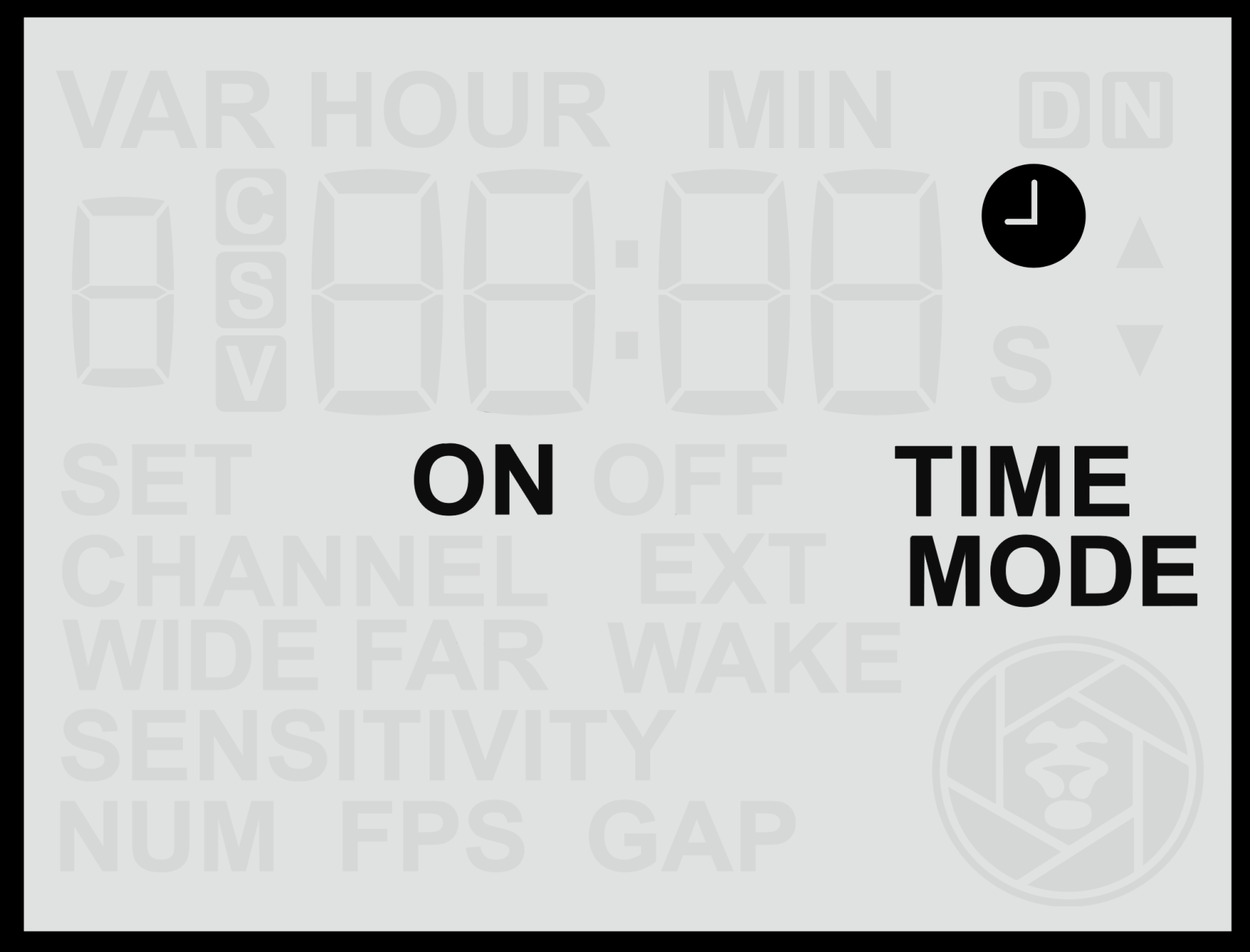
#### **Enabling or Disabling Time Windows**
1. From the **Home Screen**, press the **Right Arrow** until you reach the **Time Windows** screen.
2. Press the **Up** or **Down** button to toggle between **ON** and **OFF**.
When **Time Windows** are enabled, a **clock icon** will appear on the **Home Screen**, indicating that scheduled operating hours are active. The clock icon on the **Home Screen** will be accompanied by either **ON** or **OFF**. This provides a convenient indication of whether the sensor is currently inside an active time window (**ON**) and is therefore **working**, or outside an active time window (**OFF**) and is therefore is **disabled**.
#### **Notes on Operation**
- When Time Windows are **ON**, the sensor will remain **inactive** outside the specified time range.
- Currently, **only one time window** can be defined per 24-hour cycle (for example, limiting operation to daylight or night hours).
- Ensure the **internal clock** is correctly set before enabling Time Windows (see *Set Clock Time* section).
Future firmware updates may introduce the ability to configure multiple time windows. If multiple time windows would be a valuable feature for your application, please contact **Camtraptions** for updates or to provide feedback.
An active Time Window may cause the sensor to appear unresponsive. If the sensor does not seem to react to motion, first check whether the clock icon is visible on the Home Screen and if the activity indicator is displaying **OFF**. If it is, verify that the internal clock and time window settings are correct.