# Set Clock Time

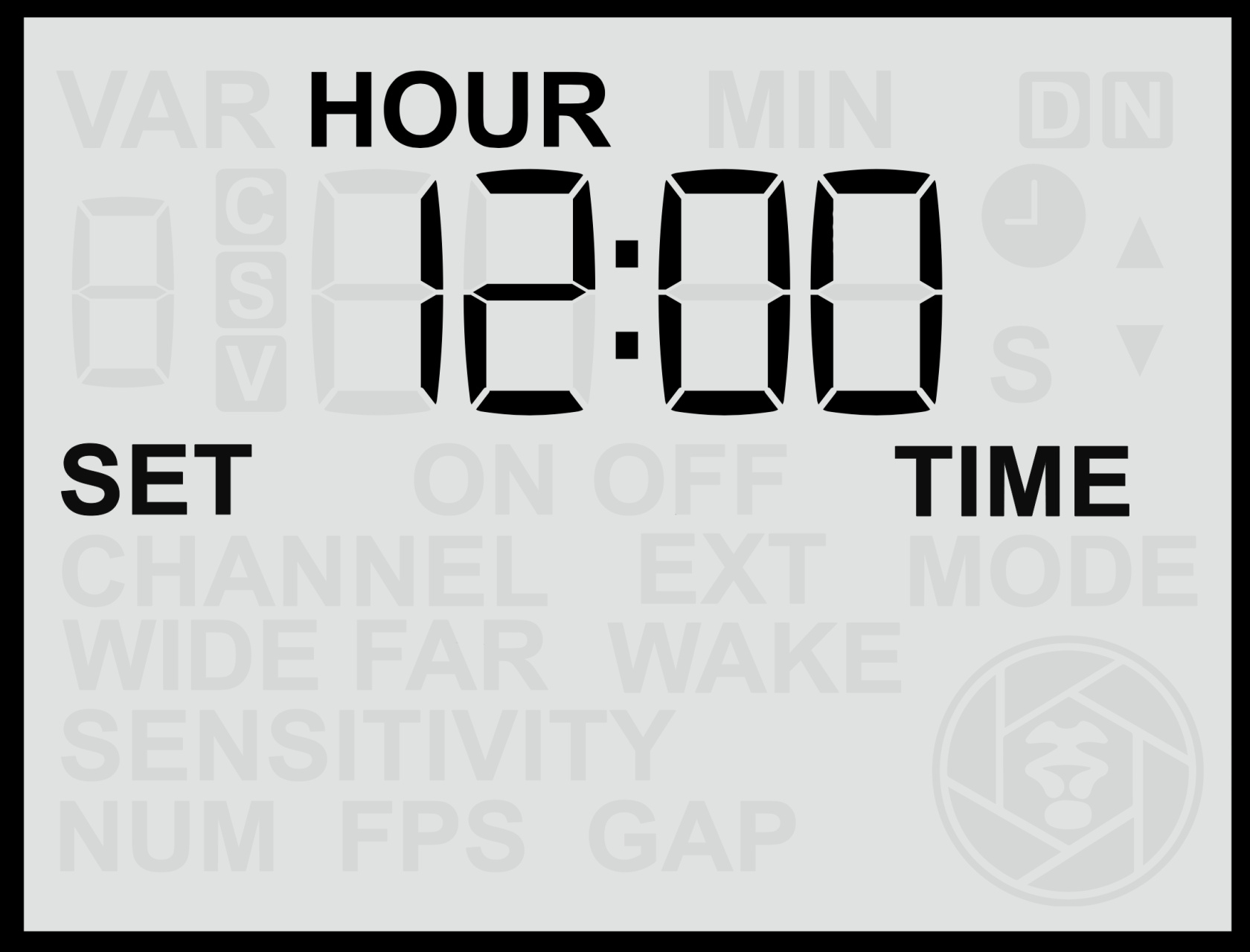
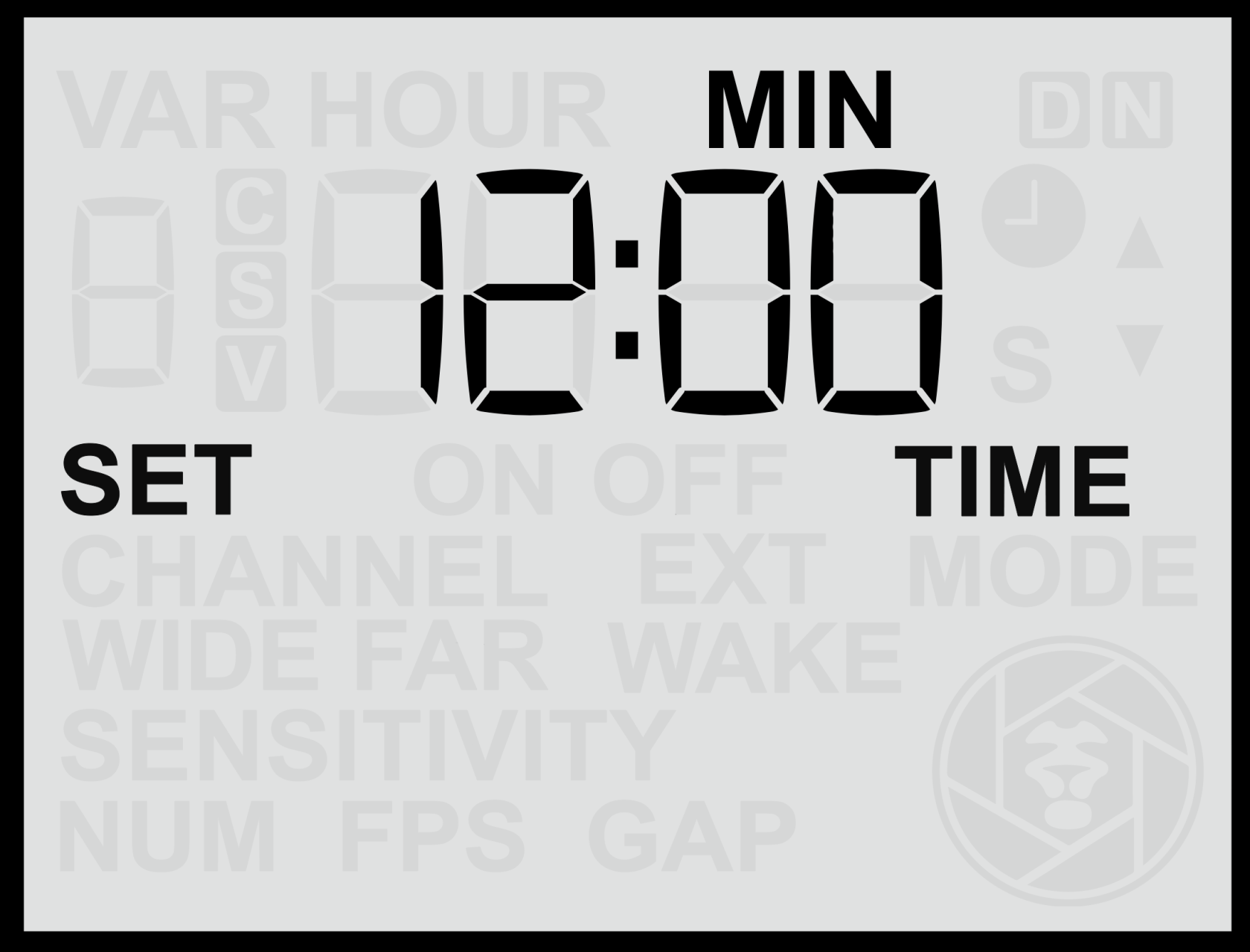
The <span class="s1">**Set Clock Time**</span> screen allows you to configure the sensor’s <span class="s1">**internal clock**</span>, which is required for <span class="s1">**Time Windows**</span> (scheduled active hours). Setting the correct time ensures the sensor operates accurately within any defined time periods.

<table border="1" id="bkmrk-" style="border-collapse: collapse; width: 100%; border-width: 0px;"><colgroup><col style="width: 50%;"></col><col style="width: 50%;"></col></colgroup><tbody><tr><td style="border-width: 0px;">![screen-set-time.png](https://docs.camtraptions.com/uploads/images/gallery/2025-10/scaled-1680-/screen-set-time.png)</td><td style="border-width: 0px;">![screen-set-time-min.png](https://docs.camtraptions.com/uploads/images/gallery/2025-10/scaled-1680-/screen-set-time-min.png)</td></tr></tbody></table>

#### **Setting the Clock**

1. From the <span class="s1">**Home Screen**</span>, press the <span class="s1">**Right Arrow**</span> until you reach the <span class="s1">**Set Clock Time**</span> screen.
2. Press the <span class="s1">**Up**</span> or <span class="s1">**Down**</span> buttons to adjust the <span class="s1">**hour**</span> value.
3. Press the <span class="s1">**Set**</span> button to confirm the hour.
4. The <span class="s1">**minute**</span> value will then begin flashing — use the <span class="s1">**Up**</span> or <span class="s1">**Down**</span> buttons to adjust it.
5. Press <span class="s1">**Set**</span> again to save the time.

The clock uses a <span class="s1">**24-hour format**</span> (00:00 to 23:59).

<p class="callout info">Note: The clock setting is retained internally, even when the sensor is powered off or the battery is removed.</p>

<p class="callout info">Note: For accurate operation of <span class="s1">**Time Windows**</span>, ensure the clock is set to <span class="s1">**local time**</span> in the location where the sensor is being deployed.</p>