# Still Mode Settings
When the sensor is set to **Still Mode**, two additional menu screens become available: **Number (NUM)** and **Frame Rate (FPS)**. These control how many photos are taken and how quickly they are captured when motion is detected.
### **Number (NUM)**
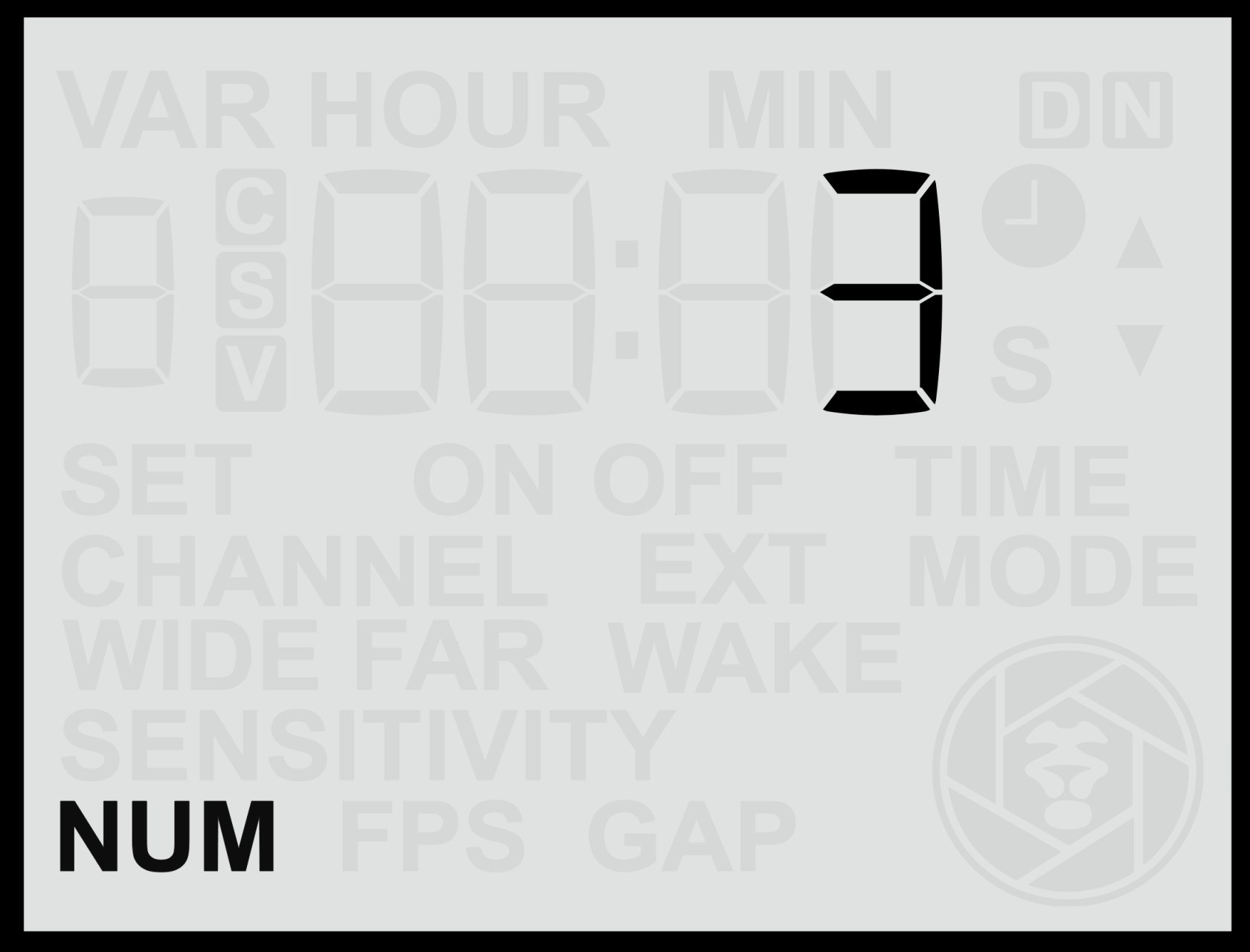
The **Number** screen lets you choose how many photos the camera will take each time motion is detected.
#### **Adjusting the Number of Photos**
1. From the **Home Screen**, press the **Right Arrow** until you reach the **NUM** screen.
2. Use the **Up** or **Down** buttons to select a value between **1** and **6**.
3. Press the **Set** button to **save** your selection.
This value determines the total number of photos that will be captured per detection event.
For example, setting **NUM = 5** means the camera will take five photos each time the sensor detects motion.
### **Frame Rate (FPS)**
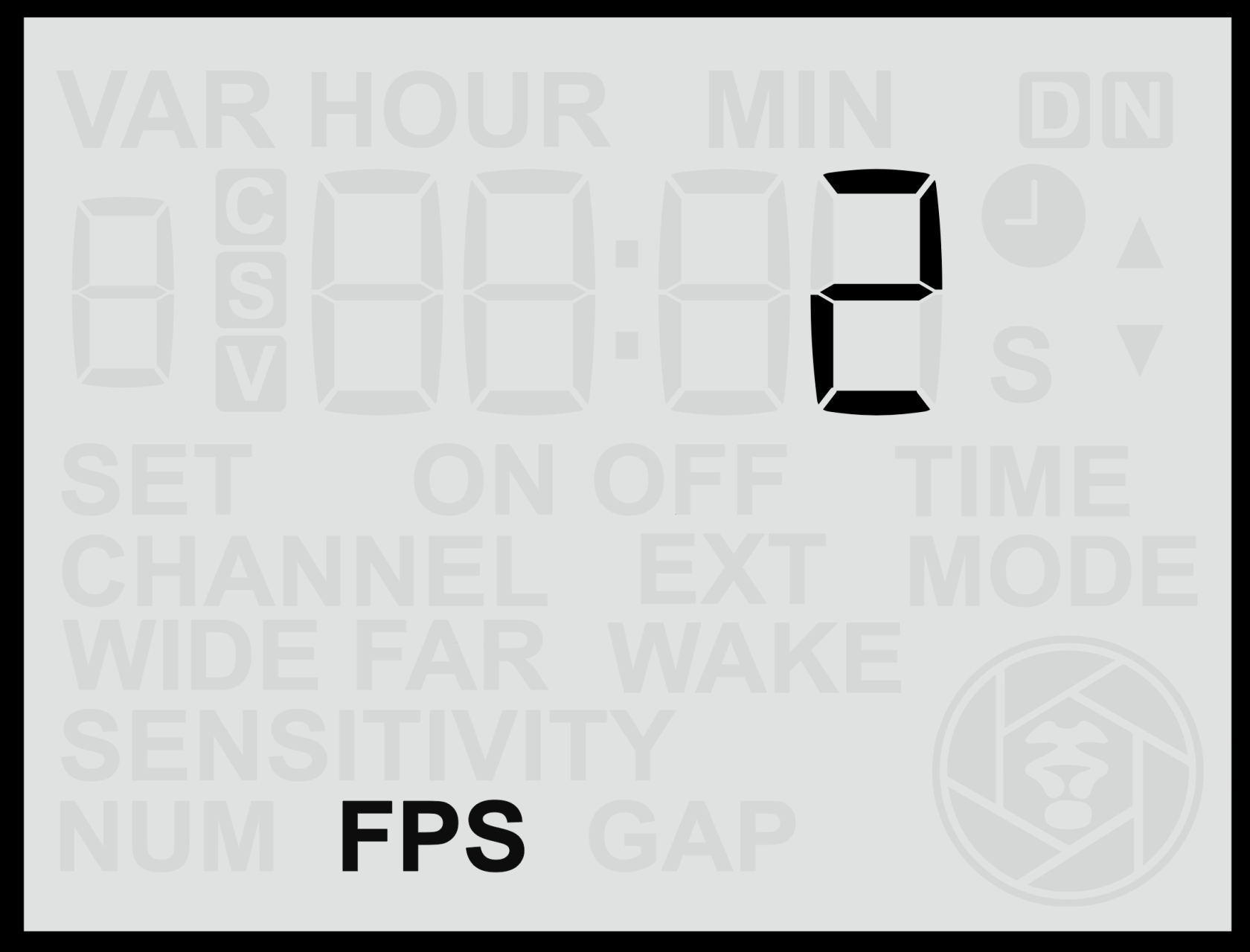
The **Frame Rate (FPS)** screen determines how quickly the photos in each sequence are taken — that is, how many frames are captured per second during a detection event.
#### **Adjusting the Frame Rate**
1. From the **Home Screen**, press the **Right Arrow** until you reach the **FPS** screen.
2. Use the **Up** or **Down** buttons to select the desired frame rate.
3. Press the **Set** button to **save** your selection.
The available frame rate range is **0.25 to 3.0 FPS**, where:
- **3.0 FPS** = Three photos per second (maximum speed).
- **1.0 FPS** = One photo per second.
- **0.5 FPS** = One photo every two seconds.
- **0.25 FPS** = One photo every four seconds (minimum speed).
For example, if **NUM = 5** and **FPS = 1.0**, the camera will take five photos over five seconds.
If **FPS = 2.0**, those same five photos will be captured over 2.5 seconds.
#### **Notes**
- Higher FPS settings capture faster sequences but may increase camera buffer use and flash cycle demands, and may also be more disturbing to animals when using flash.
- Lower FPS settings conserve battery and flash power and can be useful for monitoring slower-moving subjects.