# The Home Screen

When the Camtraptions PIR Sensor v4 is powered on, it will display the <span class="s1">**Home Screen**</span>. This is the default screen shown when the sensor is idle and ready to detect motion. The Home Screen provides key information about the sensor’s current operating state at a glance.

#### **Screen Indicators**

The following elements are displayed on the Home Screen:

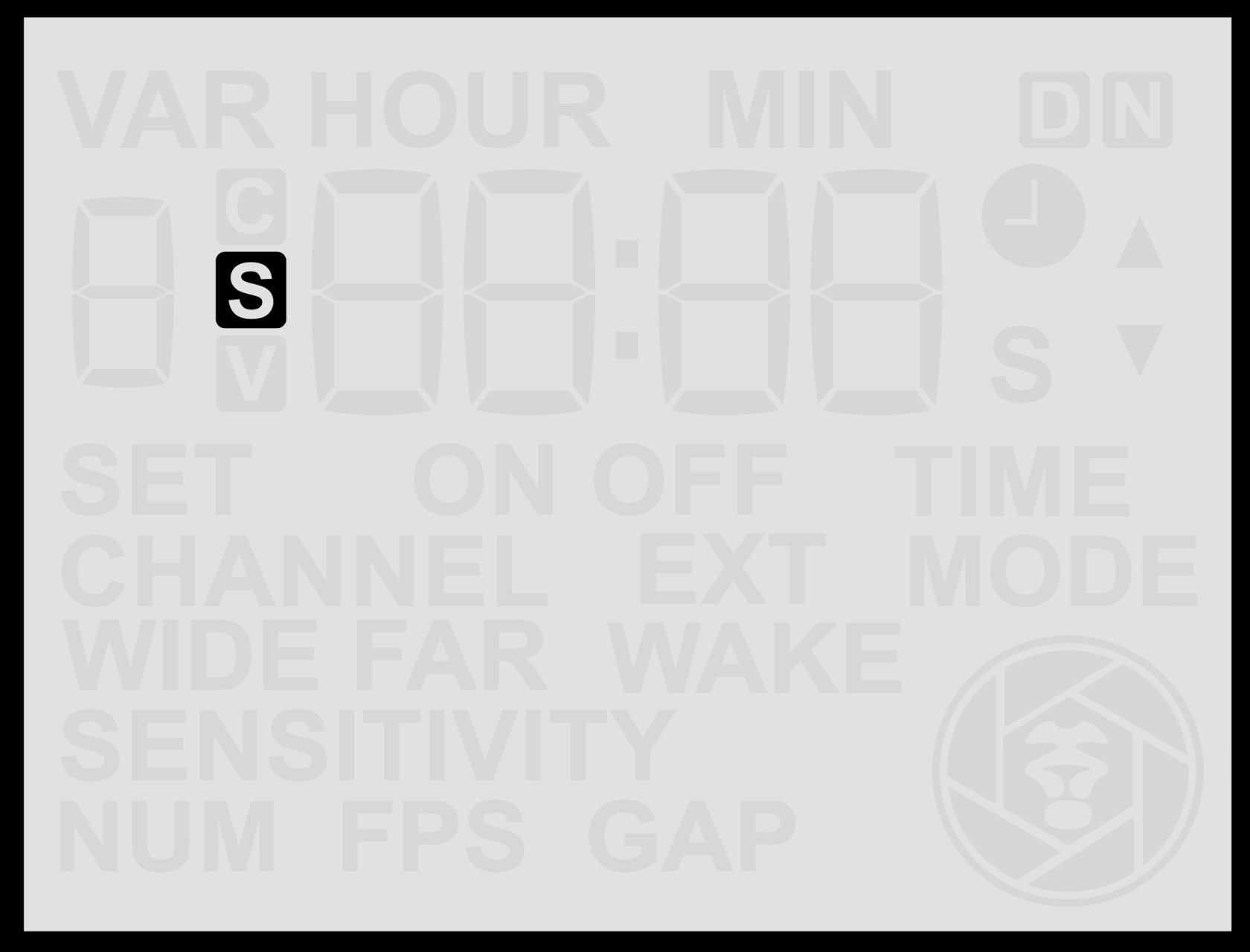
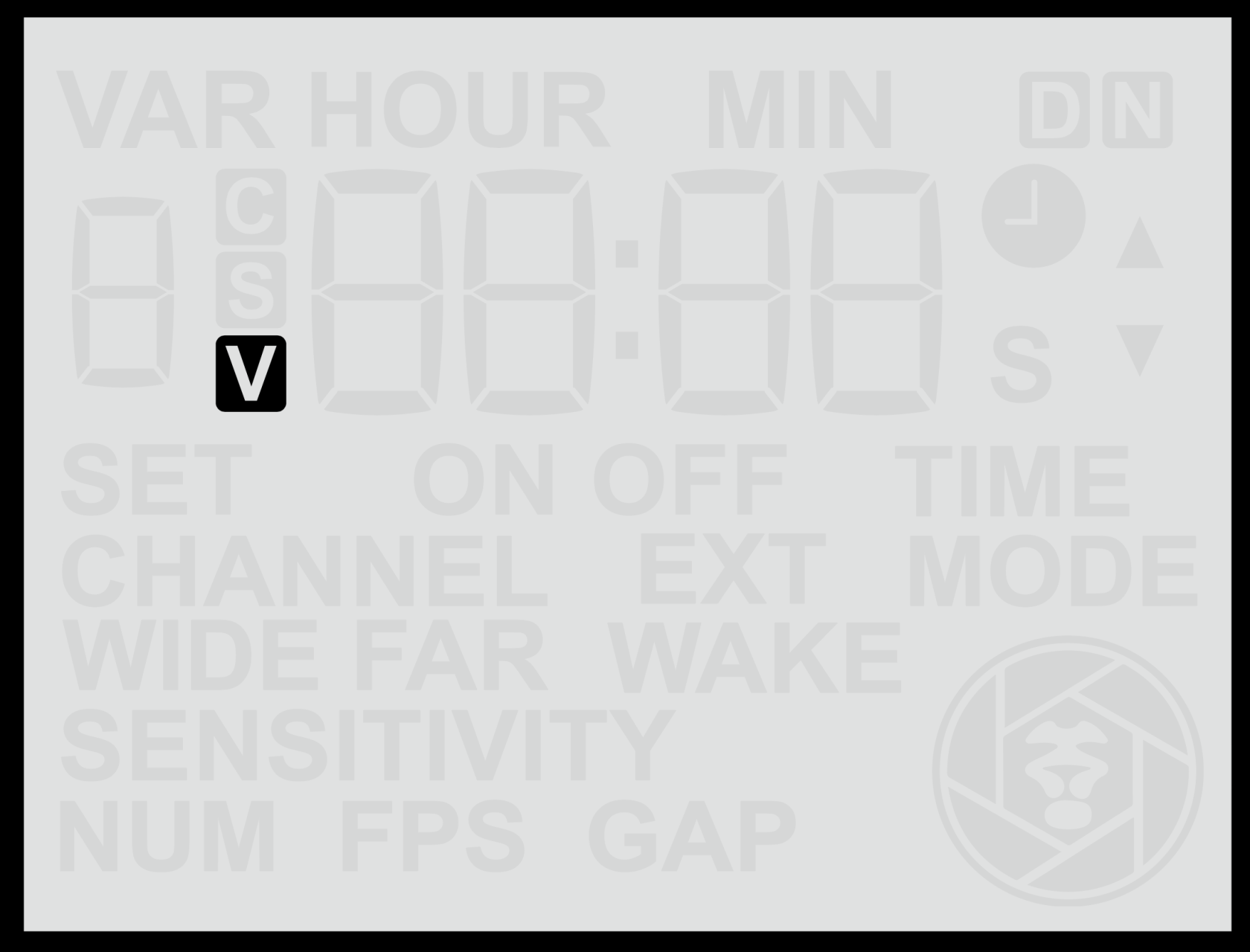
- <span class="s1">**S / V Symbol**</span> – Indicates the current <span class="s1">**shooting mode**</span>. 
    - <span class="s1">**S**</span> = Still photo mode
    - <span class="s1">**V**</span> = Video mode
    
    This icon is always visible and lets you confirm at a glance how the sensor will trigger the camera.

<table border="1" id="bkmrk-" style="border-collapse: collapse; width: 100%; border-width: 0px;"><colgroup><col style="width: 50%;"></col><col style="width: 50%;"></col></colgroup><tbody><tr><td style="border-width: 0px;">![screen-s.png](https://docs.camtraptions.com/uploads/images/gallery/2025-10/scaled-1680-/screen-s.png)</td><td style="border-width: 0px;">![screen-v.png](https://docs.camtraptions.com/uploads/images/gallery/2025-10/scaled-1680-/screen-v.png)</td></tr></tbody></table>

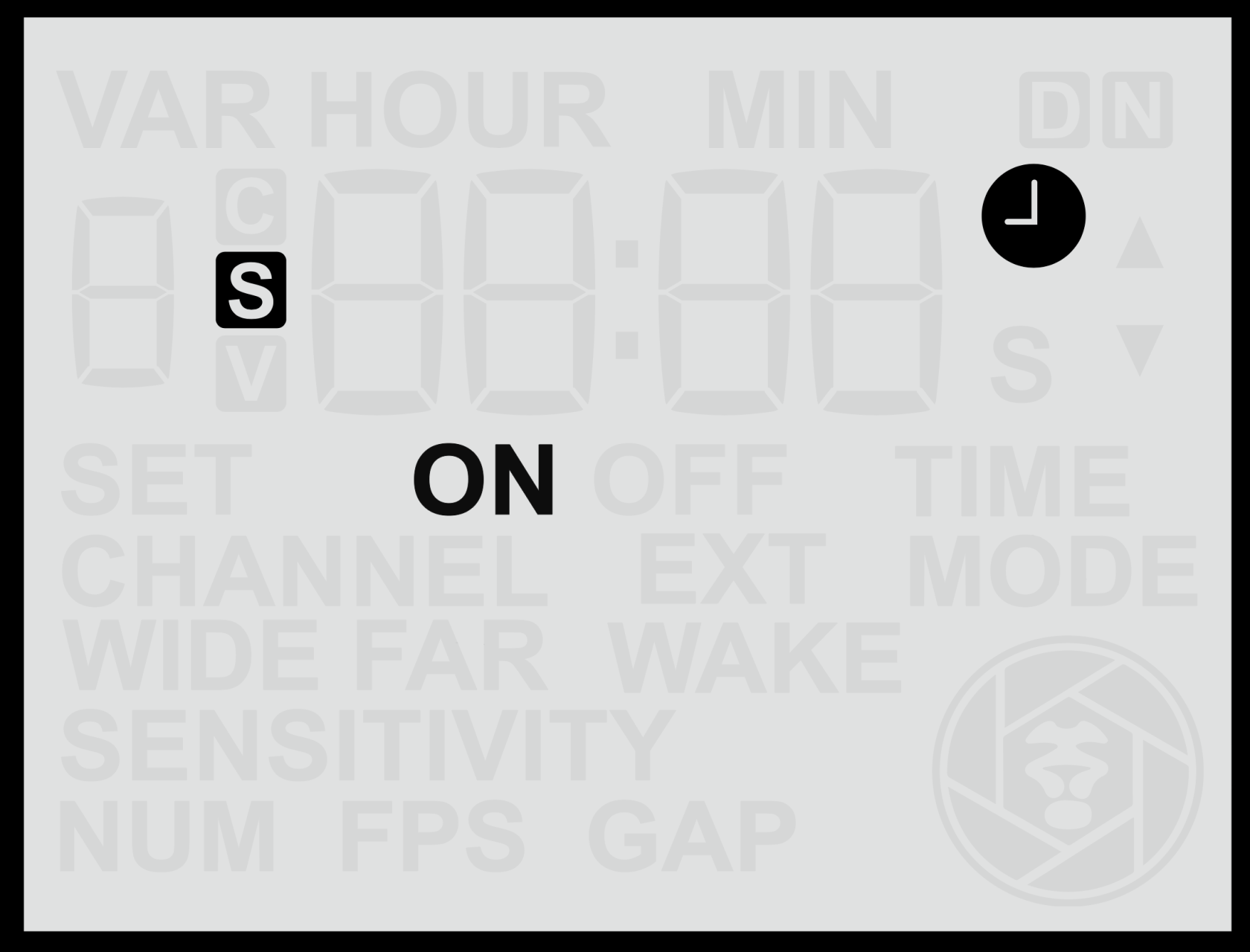
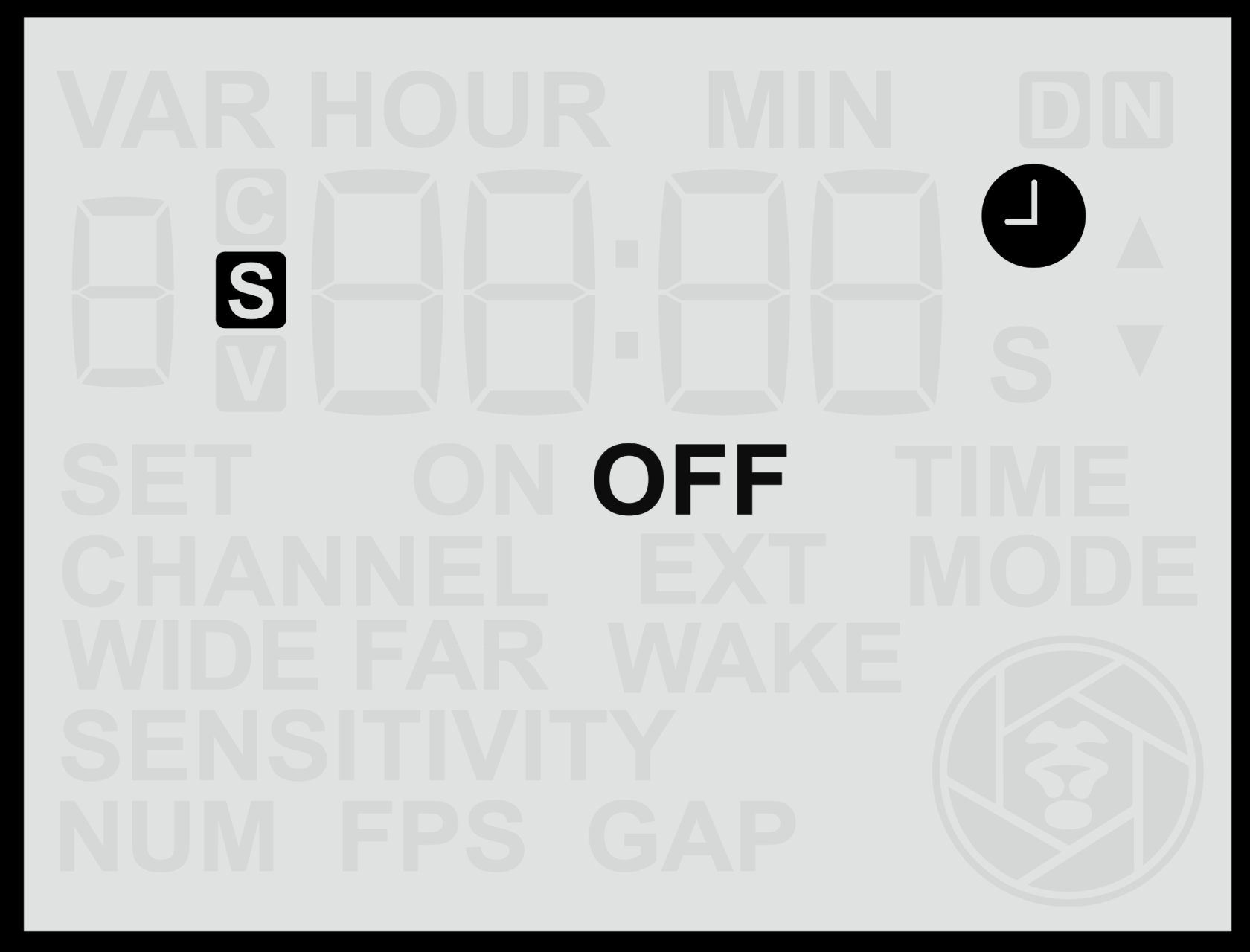
- <span class="s1">**Clock Symbol**</span> – Indicates that <span class="s1">**time windows**</span> are enabled.   
    The clock icon only appears when the sensor has been configured to operate during specific times of day. 
    - When the icon is <span class="s1">**visible**</span>, it means the sensor will operate during a specified time window and will be inactive outside those hours. The clock symbol will be accompanied by either **ON** or **OFF**. This provides a convenient indication of whether the sensor is currently inside an active time window (**ON**) and is therefore **working**, or outside an active time window (**OFF**) and is therefore is **disabled**.
    - When the icon is <span class="s1">**not visible**</span>, no time window is set and the sensor will operate continuously.

<table border="1" id="bkmrk--1" style="border-collapse: collapse; width: 100%; border-width: 0px;"><colgroup><col style="width: 50%;"></col><col style="width: 50%;"></col></colgroup><tbody><tr><td style="border-width: 0px;">![screen-hometimeon.png](https://docs.camtraptions.com/uploads/images/gallery/2025-11/scaled-1680-/screen-hometimeon.png)</td><td style="border-width: 0px;">![screen-hometimeoff.png](https://docs.camtraptions.com/uploads/images/gallery/2025-11/scaled-1680-/screen-hometimeoff.png)</td></tr></tbody></table>

- **Camtraptions Logo (bottom-right corner)**<span class="s1"> – Acts as an </span>**activity indicator**<span class="s1">.  
    </span>The logo appears whenever the sensor has detected motion and is executing a sequence of commands, such as triggering a camera to take photos or run a video recording.  
    While the logo is displayed, the sensor is “busy” and will not respond to further detections until the sequence has completed.  
    Once the logo disappears, the sensor has finished the current sequence and is ready to trigger again.  
    *Note:*
    - *The sensor may appear unresponsive while the logo is displayed. This is normal behaviour — it simply means the sensor is running its programmed sequence.*
    - *If a button is pressed while a sequence is running, the sequence will be cancelled and not completed.*

*![screen-activity-logo.png](https://docs.camtraptions.com/uploads/images/gallery/2025-10/scaled-1680-/screen-activity-logo.png)*

#### **Button Shortcuts from the Home Screen**

While on the Home Screen, pressing and holding certain buttons provides quick access to key information:

<table id="bkmrk-button-hold-duration" style="width: 100%;"><thead><tr><th style="width: 10.7271%;">**Button**</th><th style="width: 18.3434%;">**Hold Duration**</th><th style="width: 70.9295%;">**Function**</th></tr></thead><tbody><tr><td style="width: 10.7271%;">**Left**</td><td style="width: 18.3434%;">2 seconds</td><td style="width: 70.9295%;">Displays the current <span class="s1">**time**</span> set on the sensor’s internal clock — useful for quickly confirming the time setting.</td></tr><tr><td style="width: 10.7271%;">**Up**</td><td style="width: 18.3434%;">2 seconds</td><td style="width: 70.9295%;">Displays the current <span class="s1">**battery voltage**</span>, allowing you to check the remaining charge.</td></tr><tr><td style="width: 10.7271%;">**Right**</td><td style="width: 18.3434%;">2 seconds</td><td style="width: 70.9295%;">Displays the <span class="s1">**firmware version**</span>, so you can confirm you’re using the correct manual or check if an update is available.</td></tr></tbody></table>

From the quick access screens, wait 20 seconds or press any arrow key to return to the home screen.

#### **Battery Voltage Reference**

When viewing the battery voltage, the displayed value provides an indication of the remaining battery charge. The relationship between voltage and capacity varies depending on the battery type and chemistry. For convenience, detailed [<span class="s2">**battery voltage reference tables**</span>](https://docs.camtraptions.com/books/pir-v4-manual/page/battery-voltage-tables "Battery Voltage Tables") are provided at the end of this manual, showing how measured voltage corresponds to approximate remaining charge for different compatible battery types.